Sharing and Exporting
LogicPlot runs entirely in your browser, so sharing never goes through a server. There are four ways to hand a circuit to someone else:
- Share Link: the whole project packed into a URL, with a QR code.
- Embed: an
<iframe>snippet for web pages and learning platforms. - Download Image: a PNG, SVG or other picture of the circuit.
- Project files: a
.cvfile for backups and version control.
You can also open ready-made circuits from the examples gallery.
Share Link
Choose Project → Share Link (or press Ctrl + Shift + L). The dialog shown in Figure 2.8 packs every circuit tab of the project into the link itself, compressed, so anyone who opens the link sees exactly what you see. No account, upload or server is involved, and the link keeps working for as long as LogicPlot exists.
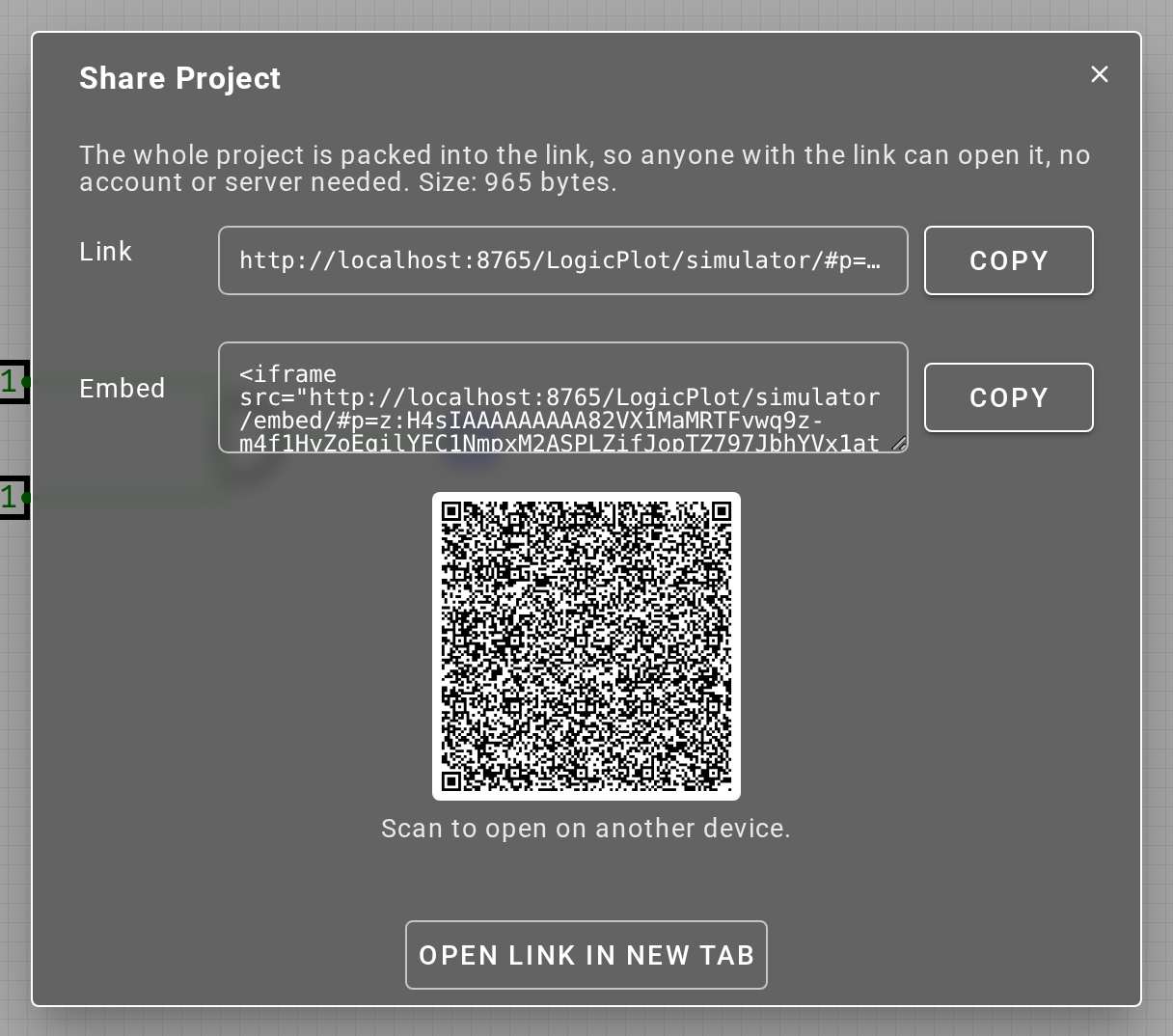
- Copy puts the link on the clipboard. Paste it into chat, email or a document.
- Open link in new tab lets you check what the recipient will get.
- The QR code opens the same project on a phone or tablet. Very large projects cannot fit in a QR code, and the dialog says so.
The dialog shows the size of the link. Small and medium projects produce links of a few kilobytes. Chat apps and some browsers truncate very long URLs, so for big projects (many circuits, memories or large images) prefer Export as File.
Opening a share link loads the project into a fresh simulator. Edits are local until you save them with Save Offline or Export as File; the link itself never changes.
Embed a Circuit
The Embed box in the Share Project dialog contains an <iframe> snippet. Paste it into any HTML page, blog, wiki or learning platform that accepts raw HTML:
<iframe src="https://logicplot.com/simulator/embed/#p=..." width="800" height="500"></iframe>
The embedded view is interactive: readers can toggle inputs, watch the clock and zoom, but the toolbars and panels are hidden. Adjust width and height to taste. The following query parameters can be added before the #:
| Parameter | Default | Effect |
|---|---|---|
theme=<name> | default | Colour theme, e.g. theme=Night%20Sky |
display_title=true | false | Show the project name above the circuit |
clock_time=false | true | Hide the clock-period control |
fullscreen=false | true | Hide the fullscreen button |
zoom_in_out=false | true | Hide the zoom buttons |
Examples
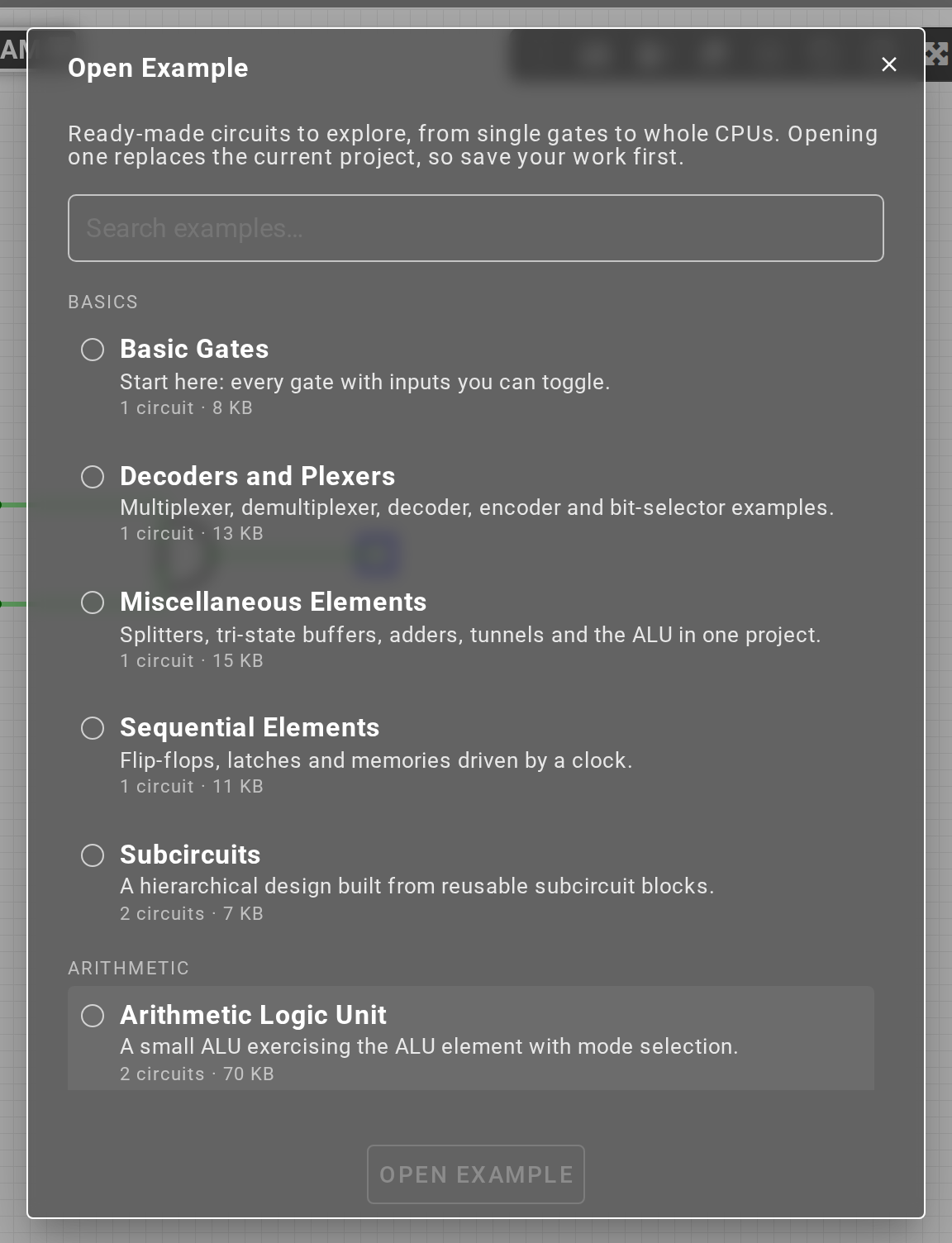
Project → Open Example (or Ctrl + Shift + O) lists circuits bundled with LogicPlot, grouped from single gates up to complete CPUs, with a search box for finding one by name (refer Figure 2.9). Opening one replaces the current project, so save first. Every example can also be opened directly with a link of the form simulator/?example=<id>; the Examples page on the LogicPlot site (linked in the footer) lists them all with previews.
Download Image
LogicPlot can render the current circuit as an image in several formats, views and resolutions for use in reports, slides and web pages. Choose Tools → Download Image (or press Ctrl + D) to open the dialog shown in Figure 2.7. Table 2.1 describes the available formats.
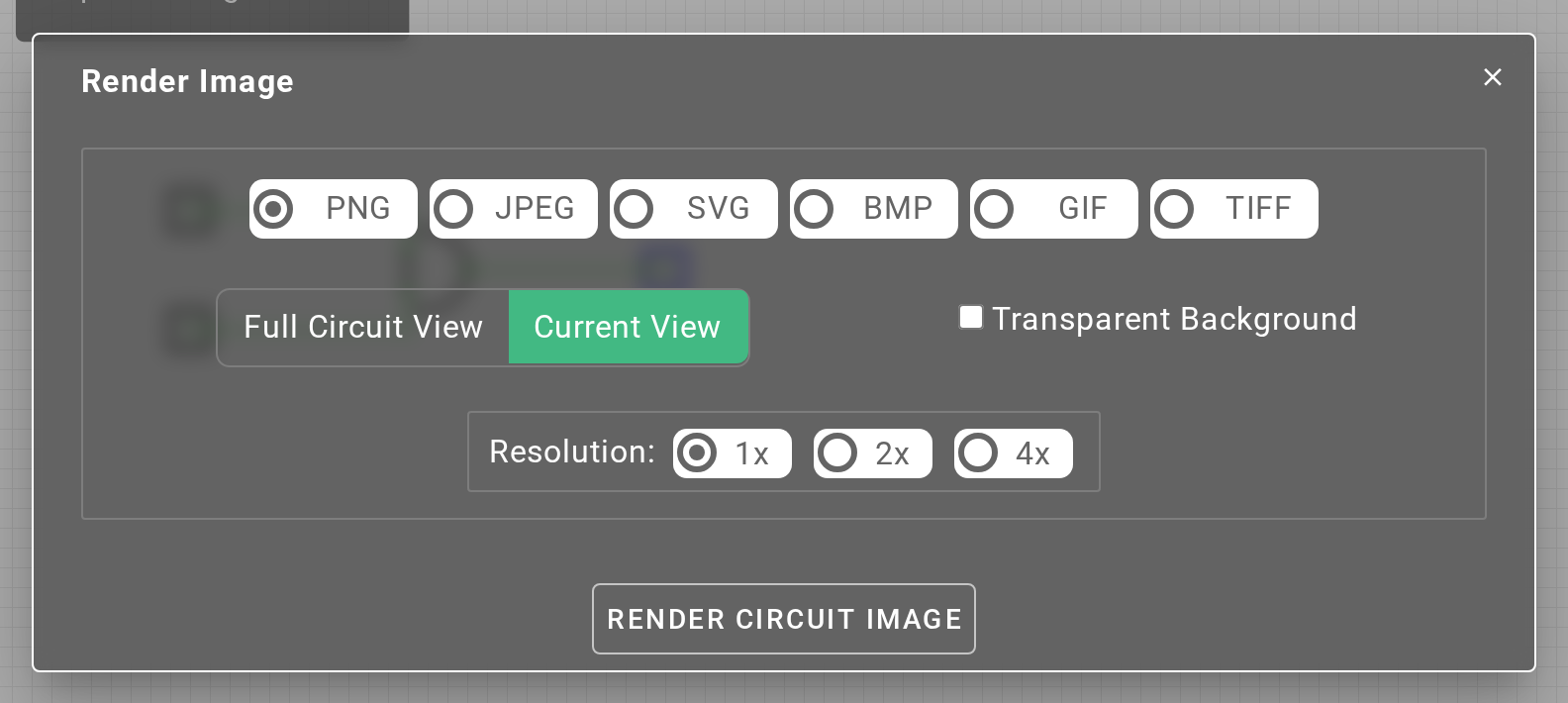
Table 2.1: Image formats supported by LogicPlot
| Name | Description |
| PNG | Renders the image in PNG format. This is the default. |
| JPEG | Renders the image in JPEG format. Widely supported and typically small, which makes it a good choice for email attachments and presentations. |
| SVG | Renders the image as scalable vector graphics. Recommended for web pages and anything that will be resized. |
| BMP | Renders the image in BMP format. Lossless but large; suited to archival copies. |
| GIF | Renders the image in GIF format. Small files suited to web images. |
| TIFF | Renders the image in TIFF format. Suited to high-quality prints and professional publications. |
Images can also be rendered in different views, with or without a transparent background. Table 2.2 describes the views.
Table 2.2: Image views supported by LogicPlot
| Name | Description |
| Full Circuit View | Zooms in or out so that the whole circuit fits the image. |
| Current View | Captures exactly what is visible in the simulator now. This is the default. |
| Transparent Background | Renders the circuit on a transparent background instead of the canvas grid, for placing on coloured slides or pages. |
Finally, choose a resolution multiplier (1x to 4x) for crisp output on high-density displays and in print.
Share Project Files
A project exported with Project → Export as File (or Ctrl + Shift + S) is a single .cv file containing every circuit tab, its layout and any attached testbench. Send the file to someone and they can open it with Project → Import Project; nothing else is required. See Getting Started for the save and load workflow.